Best Email Swipe File Tools for Designers: How to Collect, Organize, and Reuse Inspiration Faster
Finding email inspiration is rarely the problem. The problem is finding the right example again when a campaign brief lands, remembering why it worked, and translating it into an accessible, responsive design decision. For email designers, lifecycle marketers, and in-house creative teams, email swipe file tools turn scattered inspiration into a usable reference system.
A strong swipe file is not just a folder of screenshots. It is a working design library: promotional layouts, onboarding sequences, modular CTA patterns, mobile header treatments, typography examples, accessibility notes, and rendering considerations that can be searched and reused. When built well, it helps teams move faster without defaulting to copycat design or sacrificing brand consistency.
See also: Really Good Emails alternatives
This guide looks at the best types of email swipe file tools for designers by workflow, then shows how to organize and use them so inspiration becomes practical input for better campaigns.
Why email swipe file tools matter for modern email design
Email design has become more complex than “make it look good in the inbox.” A single campaign may need to support dark mode, mobile-first behavior, image blocking, accessible contrast, short attention spans, and inconsistent rendering across clients. Designers need references that show not only visual direction, but also how patterns might behave in real email environments.
Without a system, useful examples end up everywhere: in personal inboxes, browser tabs, shared drives, screenshot folders, Figma pages, Slack threads, and notes apps. That fragmentation creates friction at the exact moment a team needs clarity. A designer may remember seeing a strong abandoned cart layout, a compact newsletter header, or a smart secondary CTA treatment, but not where it was saved or what made it useful.
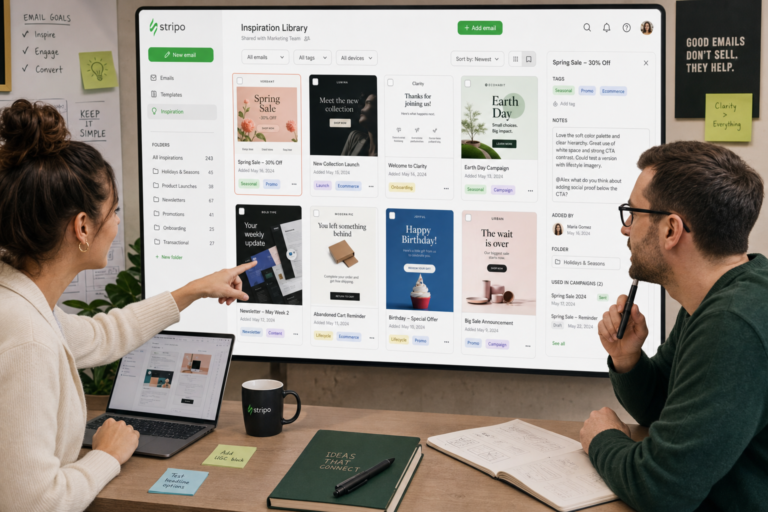
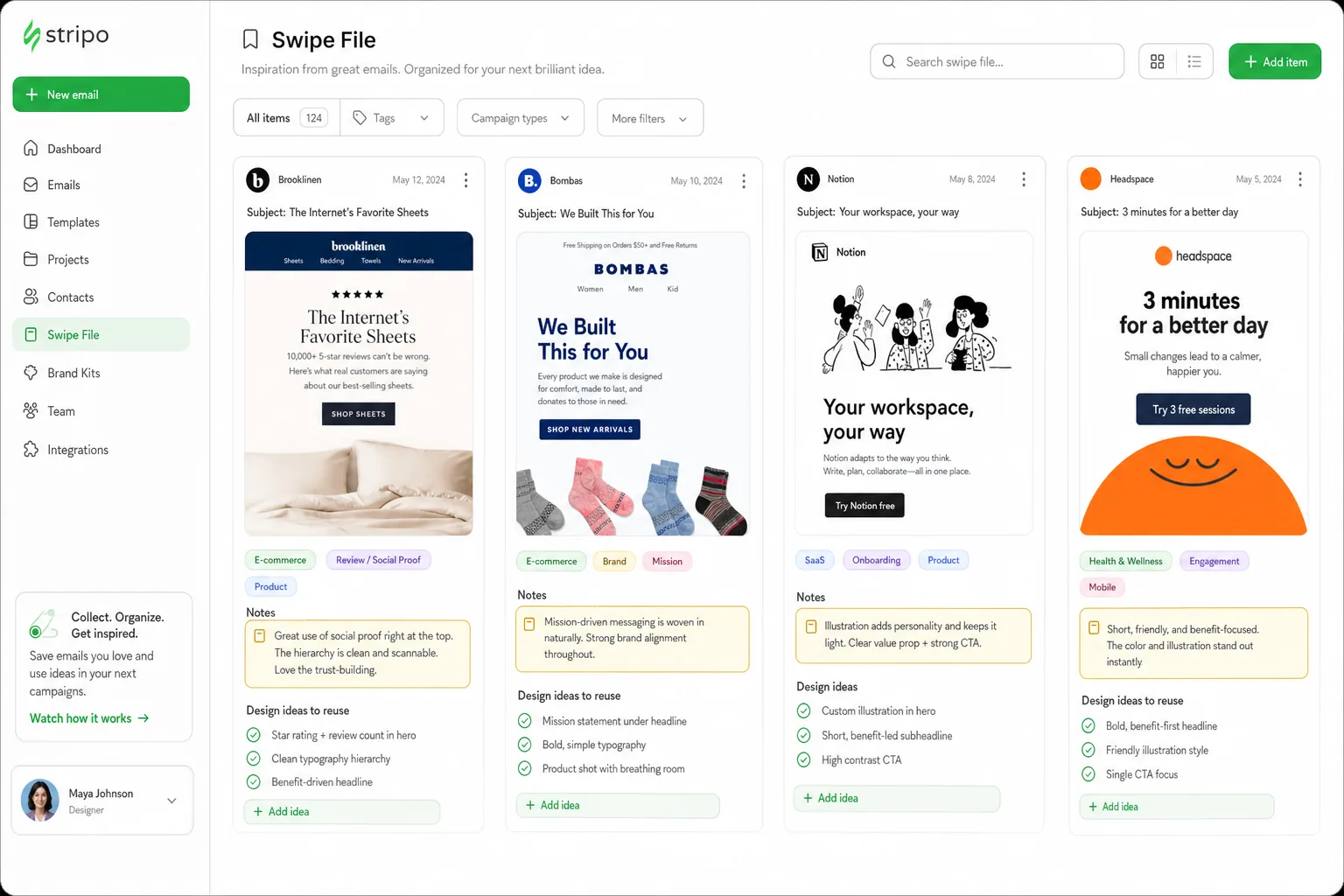
Dedicated email swipe file tools solve this by centralizing references and preserving context. Instead of saving a flat screenshot with no explanation, a designer can capture the email, tag it by pattern, note the use case, and store observations about hierarchy, layout, copy density, typography, color, and calls to action.
The real value is not collecting more examples. It is making design decisions easier. A searchable swipe file helps teams:
- Compare multiple approaches to the same campaign type, such as welcome emails, product launches, lifecycle nudges, or winback campaigns.
- Identify recurring layout patterns that support scanning, comprehension, and conversion.
- Reuse proven modular ideas across campaigns while adapting them to the brand system.
- Speed up concepting by starting with a focused reference set instead of a blank page.
- Discuss creative direction with marketers, copywriters, and stakeholders using visible examples.
For the audience of Email Design Inspirations, this matters because good inspiration should lead to better execution. A swipe file should help you inspect visual hierarchy, question accessibility, evaluate responsive behavior, and understand why a design pattern may or may not fit your campaign brief.
What to look for in an email swipe file tool
The best tool depends on how your team captures inspiration and how you reuse it. A solo designer may need fast browser capture and tagging. A lifecycle team may need a collaborative library connected to campaign planning. A larger creative team may need asset governance, reusable components, and approval-friendly organization.
Use the following criteria to evaluate email swipe file tools before committing to one.
Capture methods that match real email research
Email inspiration comes from many places: live inboxes, brand newsletters, public galleries, competitor research, landing-page-to-email flows, and internal campaign archives. A useful tool should make capture easy. Look for browser extensions, screenshot uploads, drag-and-drop saving, forwarding from an inbox, or the ability to store full-page captures.
For email design specifically, consider whether the tool can capture more than the first viewport. A hero section may look strong, but the real design lesson might be in the product grid, footer hierarchy, or mobile stacking pattern further down the email.
Tagging, folders, and searchable metadata
A swipe file becomes valuable when you can retrieve examples quickly. Tags should support how designers think, not just how marketers name campaigns. Useful tags might include single-column layout, high-contrast CTA, editorial newsletter, mobile-first hero, abandoned cart, animated module, or dark background.
Searchable metadata also matters. The ability to add notes, campaign type, industry, send date, subject line, design pattern, or accessibility concern makes the library more useful during future briefs.
Collaboration and review features
Email design is cross-functional. Designers, lifecycle marketers, copywriters, developers, and brand leads often need to comment on references before a campaign direction is chosen. Collaboration features such as shared collections, comments, annotations, approval notes, and permissions help turn inspiration into a shared decision-making tool.
For teams, it is also worth thinking about governance. General digital asset management best practices emphasize findability, metadata consistency, access control, and lifecycle maintenance. This is a natural place to add an authoritative citation later about digital asset management or metadata standards.
Email-specific context
Most generic inspiration tools were not built for email. That does not make them unusable, but it does mean you should add your own email-specific structure. The tool should allow you to record notes about responsive behavior, typography scale, image-to-text balance, button size, alt text considerations, dark mode risk, and email client constraints.
At minimum, your tool should help you answer: What is worth borrowing from this example, and what would need to change before using a similar idea in an accessible, responsive email?
The best email swipe file tools for designers, by workflow
Instead of treating the market as one generic list, it is more useful to group tools by workflow. The best email swipe file tools are the ones that fit the way your team actually collects, reviews, and applies inspiration.
Browser-based capture tools
Browser-based capture tools are ideal for designers who research public email galleries, competitor examples, ecommerce flows, and web-based email previews. Their main advantage is speed. When you see a useful layout, CTA treatment, header structure, or product module, you can save it without interrupting research.
These tools work best when they support quick tagging at the moment of capture. If you postpone tagging until later, the library can become a pile of unidentified screenshots. For email designers, browser capture is especially useful for saving examples by pattern, such as hero-plus-grid layouts, editorial digest formats, event promotion structures, or loyalty program modules.
Use this category if your workflow starts with visual research across many sources and you need a lightweight way to collect references quickly.
Screenshot and annotation tools
Screenshot and annotation tools are useful when the design lesson is visual and specific. A designer can mark up hierarchy, spacing, button prominence, contrast issues, typographic rhythm, image cropping, or where the layout may break on mobile.
This category is particularly helpful during critique and concepting. For example, a team can annotate three promotional emails and compare how each handles the primary offer, secondary content, and footer density. The point is not to copy the strongest example, but to identify the principle behind it: clearer prioritization, better CTA isolation, more scannable content blocks, or stronger alignment between copy and imagery.
Use this category if your team learns best through visual markup and needs to discuss design decisions before moving into wireframes or comps.
Inbox-to-library tools
Inbox-to-library workflows are useful for lifecycle marketers and email designers who subscribe to many brand emails and want to preserve real campaign context. These tools typically make it easier to save examples directly from an inbox or route selected emails into a shared repository.
For more context, according to McKinsey offers additional background on this topic.
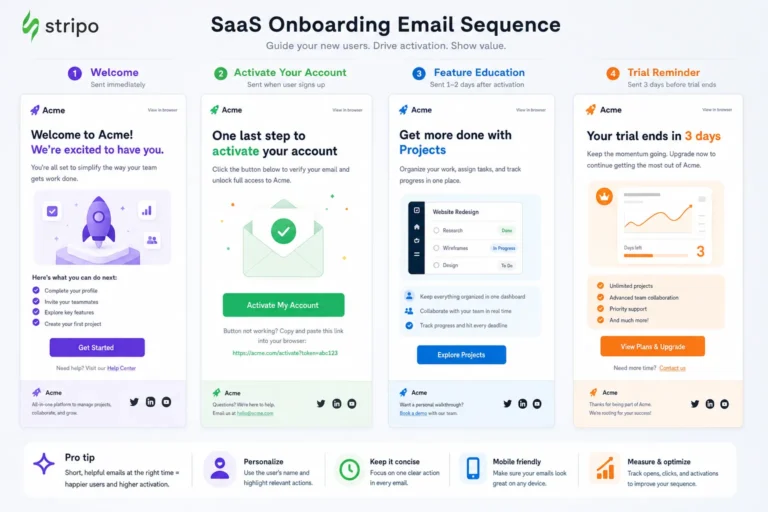
The strength of this workflow is context. You can capture subject line, sender, campaign timing, sequence position, and sometimes the email source or preview. That makes it easier to study onboarding flows, promotional cadence, triggered messages, and seasonal campaign patterns.
See also: interactive email inspiration
For design teams, the key is to layer visual tags on top of marketing context. A saved onboarding email should not only be labeled as onboarding; it should also be tagged by layout, CTA structure, illustration style, content density, and mobile behavior if relevant.
Use this category if your team studies real campaigns over time and wants a practical way to connect strategy with design execution.
Design-system-friendly asset organizers
Some teams need more than inspiration capture. They need a bridge between references, approved components, and reusable campaign modules. Design-system-friendly organizers can help teams store inspiration alongside brand assets, component examples, templates, usage notes, and campaign references.
This workflow is valuable for in-house creative teams that produce a high volume of email. A swipe file can evolve into a pattern library: approved hero structures, product modules, testimonial blocks, event sections, editorial dividers, CTA rows, and footer variations. Inspiration remains part of the system, but it is connected to reusable decisions.
Use this category if your team wants to reduce repetitive design work, maintain brand consistency, and move faster from brief to production-ready layout.
Practical rule: choose the tool that reduces friction at the point of capture and increases clarity at the point of reuse. A beautiful library that no one updates will not improve campaign work.
How to organize a swipe file so it actually speeds up work
A swipe file fails when it becomes a dumping ground. The goal is not to collect every interesting email. The goal is to create a searchable design memory that helps you make better decisions under deadline pressure.
Start with a tagging system that reflects how email projects are briefed and built. A practical structure might include:
- Industry: ecommerce, SaaS, media, nonprofit, finance, travel, education, health, marketplace.
- Campaign type: welcome, onboarding, newsletter, product launch, sale, abandoned cart, reactivation, event, transactional, post-purchase.
- Layout pattern: single-column, modular grid, editorial digest, hero-led, product grid, split section, card layout, long-form story.
- CTA style: primary button, text link, stacked CTAs, secondary CTA, full-width mobile button, repeated CTA.
- Visual hierarchy: offer-first, image-first, copy-led, benefit-led, urgency-led, educational.
- Typography: large headline, compact body copy, editorial serif, all-caps labels, short scanning blocks.
- Color and contrast: high contrast, muted palette, dark background, brand color emphasis, accessibility concern.
- Mobile behavior: stacked modules, cropped imagery risk, sticky hierarchy, simplified navigation, thumb-friendly CTA.
Separate proven patterns from experiments. Proven patterns are references you would confidently adapt for production because they align with accessibility, responsiveness, and brand usability. Experiments are interesting ideas that may require testing, simplification, or technical review before use.
Add notes to every high-value example. These notes do not need to be long. A useful annotation might say: “Strong hierarchy because the offer, benefit, and CTA are visible in one scan,” or “Interesting editorial layout, but body text may be too small for mobile.” The best notes capture both what to borrow and what to avoid.
Review each example through three lenses:
- Responsive design: Will the layout still make sense when stacked? Are images dependent on desktop cropping? Does the CTA remain visible on mobile?
- Accessibility: Is contrast sufficient? Is the CTA clear without relying only on color? Is text embedded in images in a way that could create problems?
- Email client constraints: Does the design rely on effects that may not render consistently? Would the layout survive image blocking, dark mode shifts, or limited CSS support?
This is where email swipe file tools become more than inspiration storage. With the right tags and notes, your library becomes a decision-support system for campaign planning, critique, and production.
A designer-friendly workflow for using swipe files in real projects
A swipe file is most useful when it is integrated into the campaign workflow. Here is a practical process that can fit a solo designer, a lifecycle marketing team, or an in-house creative group.
1. Save examples continuously, not only during a brief
The best references are collected before you urgently need them. Set aside a recurring time to review emails, galleries, and internal campaigns. Save only examples with a clear lesson: a strong CTA hierarchy, an effective mobile layout, a clean product module, a smart footer, or a useful approach to dense content.
2. Annotate the design decision
Do not just save what the email looks like. Record why it matters. Is the design effective because it reduces choice? Uses color to isolate the primary action? Keeps the headline readable on mobile? Balances promotional urgency with brand tone? Notes like these make the example reusable months later.
3. Cluster similar patterns
When a new brief arrives, pull five to ten examples that solve a similar problem. Cluster them by approach. For a product launch, you might group references into story-led, feature-led, offer-led, and visual-impact-led directions. This helps the team compare strategies instead of debating one isolated example.
4. Build a focused reference set
Create a small moodboard or reference set for the campaign brief. Include only the examples that clarify the intended direction. Too many references can create confusion, especially with stakeholders. A tight set of examples helps align on hierarchy, tone, density, CTA treatment, and mobile priorities.
5. Translate principles into wireframes or comps
Ethical use of a swipe file means abstracting the principle, not copying the layout. If an example uses a strong hero-to-CTA flow, identify the underlying structure: clear promise, supporting proof, single action, and reduced visual noise. Then adapt that principle to your own brand system, content, audience, and campaign goal.
Lifecycle marketers can use the same process to speed up planning. Instead of asking for “something like this,” they can point to specific patterns: a tighter content hierarchy, a more prominent mobile CTA, a simpler product grid, or a clearer educational sequence. That makes collaboration faster and more precise.
Common mistakes to avoid when building an email inspiration library
The most common mistake is over-collecting. A huge library with poor tagging is slower than no library at all. If every email looks “interesting,” the tool will not help you make decisions. Be selective and save examples because they demonstrate something useful.
Another mistake is storing only screenshots with no context. Screenshots are valuable, but they often miss campaign purpose, sequence timing, subject line, mobile behavior, and technical limitations. Whenever possible, preserve enough context to understand how the email functioned, not just how it looked.
Designers should also avoid treating desktop and mobile as the same reference. Many impressive desktop layouts become weak on mobile if hierarchy collapses, CTAs fall too far down, or images lose meaning when cropped. Add mobile notes or separate captures when the responsive behavior is important.
Accessibility is another frequent blind spot. A swipe file full of beautiful but low-contrast, image-heavy, or tiny-type examples can lead teams in the wrong direction. Make accessibility notes part of the organization system so visual inspiration is always evaluated against usability.
Finally, do not use a swipe file as a substitute for strategy. Inspiration should support the campaign brief, audience need, and message hierarchy. The right tool can help you move faster, but the designer still has to decide what belongs, what to simplify, and what will work in the inbox.
Build a swipe file system that matches your workflow, then use it to collect, categorize, and reuse email inspiration faster for every campaign brief. When the system is searchable, annotated, and grounded in responsive and accessible design, it becomes more than a collection of nice emails. It becomes a practical engine for better email design decisions.
See also: email design inspiration by industry